The Power of Tasks in Multiple Projects
One of the things that makes Asana powerful and versatile is a capability it’s had from the start — a Task can be in more than one Project at the same time. Instead of treating Projects like closed folders, where the contents inside only live in one place, Asana Projects are more like playlists in iTunes. Just like a single song can come first in my vacation playlist and last on my dinner party playlist, a single Task can be in multiple Asana Projects.
Allowing Tasks to be in multiple Projects means a team has access to multiple views of the same piece of work, and each team member can organize Tasks without losing collective view of discussions, history, ownership, or other information.
We built this feature into the fabric of Asana because viewing information from multiple perspectives is essential for collaborative task management, especially in a world where people have their own work and organizational styles. It saves time, improves collaboration, and lets people organize work in a way that makes sense to them.
Let’s discuss a few concrete examples:
Focus on the Work That Matters
The nature of Asana means you can have fewer meetings, but it also helps make your meetings faster, more efficient, and more focused on the important decisions.
For some teams, preparing for a meeting means copying and pasting notes from scattered email threads, last-minute additions, and offline discussion of action items. Perhaps the finalized agenda is projected on a screen during the meeting, or maybe each individual team member views it privately on their own computer.
Whatever the process might be, it usually involves an unnecessary amount of time. But with Asana, you can create a Project for your agenda, and then add items to the agenda from previously created Tasks. In the agenda the Tasks are sorted by the order you’ll discuss them, but in the original Project they retain their priority order.
The ability to include Tasks in multiple Projects also means that items can quickly be added to agendas during a meeting. And, as your team discusses a Task, you can click on it to pull up the notes and conversation; any decisions you make can be recorded directly in the notes. You can also assign the Task and include it in the relevant Project immediately — there are no follow-up emails or meeting summaries needed.
When everyone is on the same page from a project’s beginning to end, you can spend less time doing busy work and more time on the issues that matter.
Effortless Cross-Team Prioritization
When two teams work together, you’ll sometimes find Tasks that don’t fall entirely under the scope of one team or the other. But eventually the work has to get done, and with Asana you can track which Tasks are complete without miscommunication.
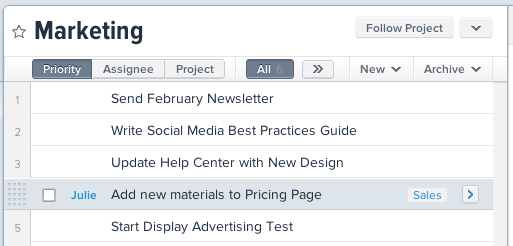
For example, both the Sales and Marketing teams might want an update to the pricing page on their company’s website, but only one team needs to make the change. In Asana, you can put the Task in both the Sales Project and the Marketing Project, letting each team prioritize according to their schedule.
When one team starts working on it, the other team will be able to track the assignment’s progress so that they don’t accidentally duplicate the effort.
The Right View for Each Team Member
On big projects that involve multiple teams, each team might need to view a Project from their own point of view.
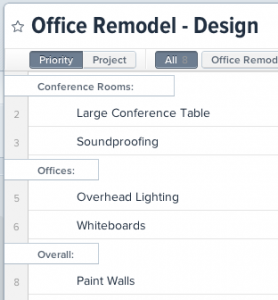
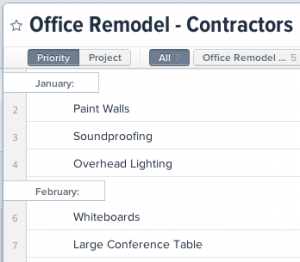
For example, if you’re remodeling an office building, the design team might think of the plans on a room by room basis, while the contractor thinks of the plans in the order they’ll be worked on. In Asana, you can create a Project for each team and put the remodeling Tasks in both Projects. Since the Tasks are the same, you’ll have one single shared history between the teams, and communication won’t get lost in the hand off.
An added benefit to allowing Tasks to be in more than one Project is that you get more freedom and flexibility; you don’t have to adapt to one method of organizing work. You can take the Tasks assigned to you from a shared Project, add them to a new, individual Project, and re-categorize them in your own way.
Do you have other examples of putting tasks into multiple projects? Let us know how you use Asana!